



Native-quality visuals with high frame rates and low latency for a seamless experience.

Massive high-speed nodes | Stable and continuously available | One-click quick connect
We have more than 10,000 nodes in 184 countries and regions, as well as globally optimized high-speed lines

A global high-speed network built for streaming, with high-speed video channels that unlock worldwide content for zero-buffering loading.
Download now →Esports-grade network optimization that eliminates high ping for a silky-smooth gaming experience.
Native-quality visuals with high frame rates and low latency for a seamless experience.

Balancing higher image quality, higher frame rates, and a stable connection experience.
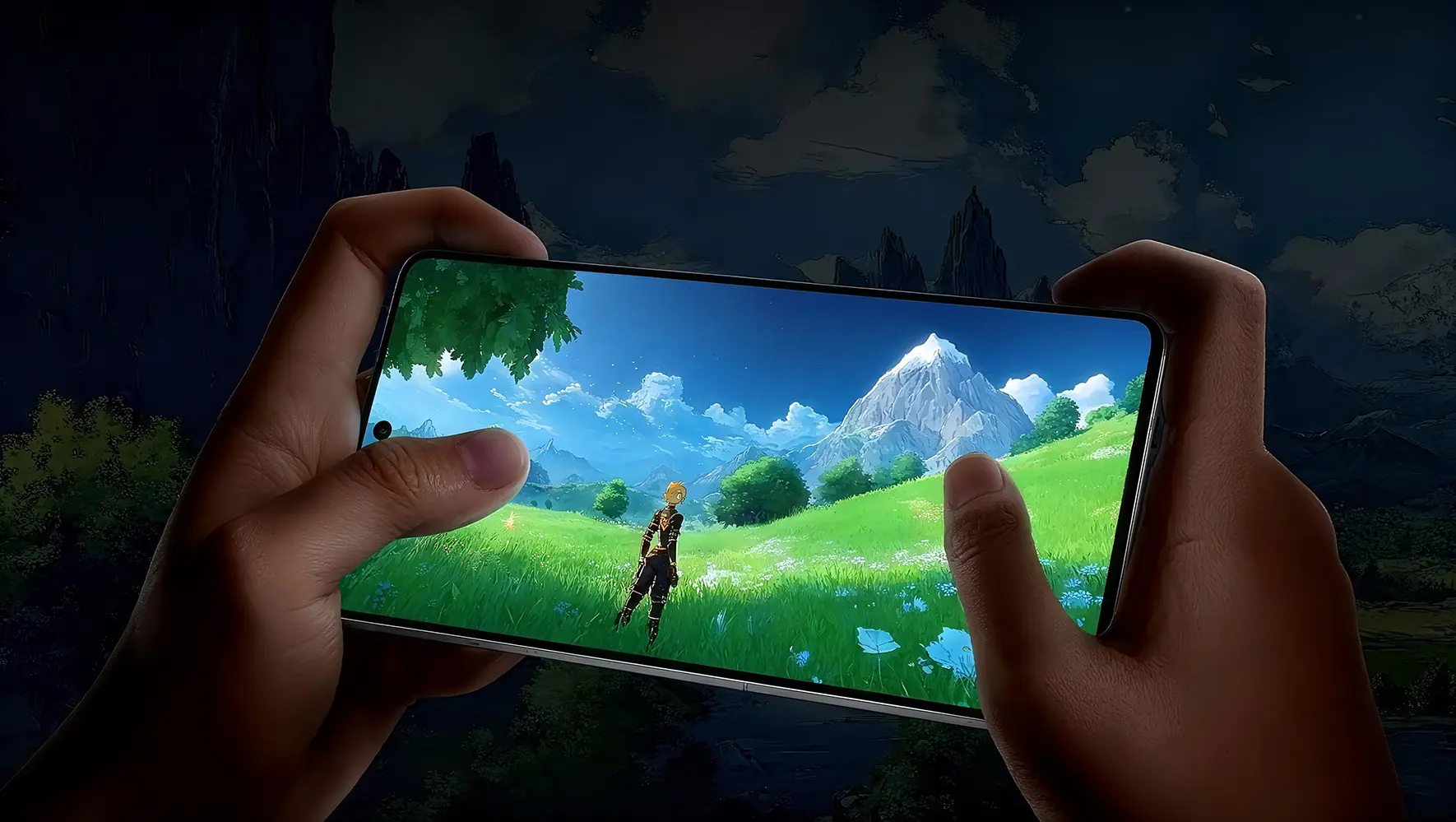
Continuously smooth, detailed, and stable across different gaming platforms.
Smart connection, device switching, and privacy settings make common functions clear at a glance.

Choose the most suitable connection method for the current environment to reduce repeated setup.

Covers common device platforms such as computers, phones, and tablets.

Protects everyday connection processes with clear security mechanisms.

Focuses on common steps, allowing new users to get started quickly.

Provides a continuous, clear user experience across different network environments.
Get started quickly with smart route selection and one-click connection; when switching devices, simply choose the corresponding client.
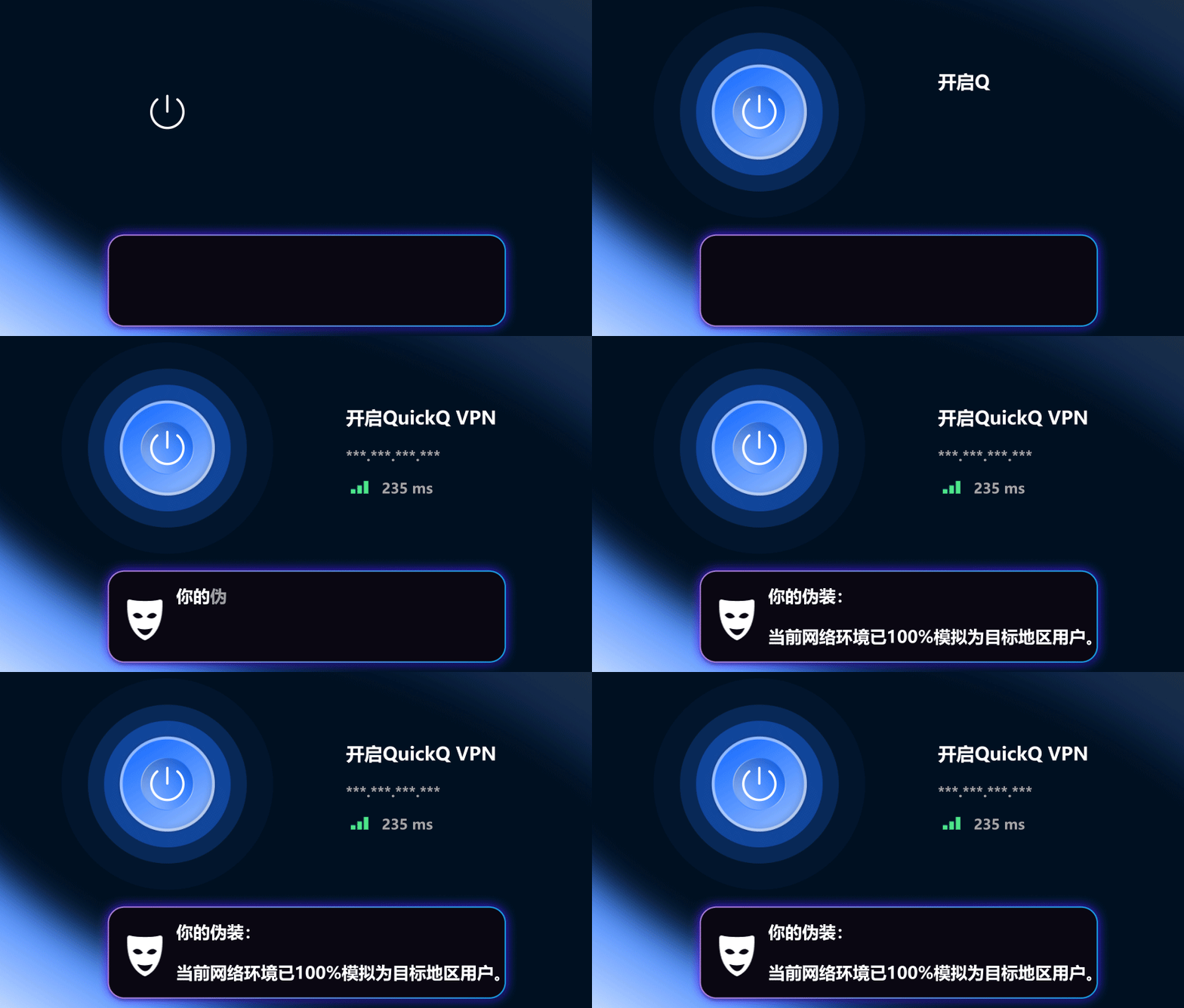
Enjoy a familiar connection experience on computers, phones, and tablets; choose the corresponding client based on your device's system.
Frequently asked questions about device selection, downloading, installation, and getting started.
Supports common platforms including Windows, Android, iOS, macOS, and Linux. Please choose the version that fits your device.
Open the downloaded installer and follow the wizard. On mobile devices, install according to the system prompts.
Open the client and follow the in-app prompts to complete the initial setup, then select a server to connect.
Go to the download center on this site and select the version that matches your current device's operating system.
Go to the download center and choose the client and installation entry based on your device's system.
Open Download CenterThe QuickQ VPN desktop client is designed for users who need stable connections, fast access, and clear operation. No complex configuration is required — connect right after installation, and choose different modes based on network conditions.
Open the client and select Quick Connect to automatically match a low-latency server, ideal for daily browsing, work, and video conferencing.
The same account can be used across desktop and mobile devices, with connection statuses independent of each other, making it easy to stay online in different scenarios.
After connecting, current network traffic is automatically encrypted, reducing the risk of information exposure on public Wi-Fi without manually adjusting complex settings.
First check whether the system time is correct, then try switching between different connection modes or restarting the client. If the network environment is heavily restricted, you can choose an alternative node or try again later.
Install the corresponding client on each device and log in with the same account. It is recommended not to stay connected on too many devices at the same time, so as not to affect your daily experience.


 Windows
 Android
 iPhone / iPad
 macOS
macOS Linux
Linux